

Overview
Note: All Austin Housing Authority waitlists are currently closed. When a waitlist reopens, we will make a public announcement and eligible households will have the opportunity to apply and participate in the waitlist lottery process.
View the Table of Contents to select the program you’d like to apply for.
Pathways Property Waitlist Application Steps
1. Go to the property application website
Visit the Pathways Properties page and select the property you would like to apply for. Properties currently accepting applications will appear at the top of the page under Accepting Waitlist Applications.
2. Create a RentCafe Account
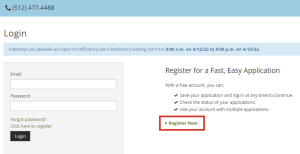
All applicants must begin by selecting Register Now on the property’s application page, even if you already have a RentCafe account. To create or access your account:
- Select Register Now on the property’s application page.
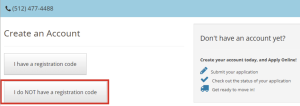
- Select I do NOT have a registration code.
- Enter the requested information (name, phone, email, and password) to create an account. Be sure to use an email address and phone number that you regularly check, as they will be used to contact you about your application. Once complete, click Register.
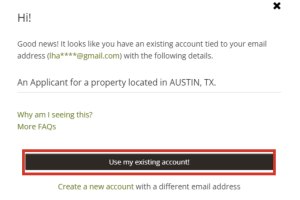
- Already Have a RentCafe Account? If you enter an email address that is already associated with a RentCafe account, a pop-up window will appear giving you the option to use your existing account.
-
- Select Use My Existing Account and enter the same password associated with that account. If you do not see the pop-up, check that your browser’s pop-up blocker is disabled and that you’ve entered the correct email address.
- You will be required to use the same password for your existing RentCafe account. If you forgot your password, select Forgot Password and follow the prompts to reset it.
- If you no longer have access to the email address associated with your RentCafe account, you will need to create a new account using a different email address.
- Select Use My Existing Account and enter the same password associated with that account. If you do not see the pop-up, check that your browser’s pop-up blocker is disabled and that you’ve entered the correct email address.
3. Complete the Application
Once you log in, the application will open automatically. Follow the prompts to complete each section and provide the required information.
Head of Household Information
Provide the following information for the Head of Household:
- Full legal name
- Date of birth
- Social Security Number (if applicable)
- Phone number
- Email address
- Current mailing address
Important: Be sure to provide a phone number, email address, and mailing address that you regularly use. We will use this information to contact you about your application and waitlist status.
Household Members
All household members who will live in the unit must be included in the application. Use each person’s full legal name as it appears on official identification or government-issued documents.
To add additional adults (18 years or older):
- Select Add Additional Adults.
- Enter the required information for each adult household member.
- Once added, select More Info Needed next to each adult and complete any additional required information.
- The status will change to Edit once all required information has been entered.
To add children and dependents (under 18 years old):
- Select Add Children/Dependents.
- Enter the required information for each child or dependent.
- Select Save to add them to the application.
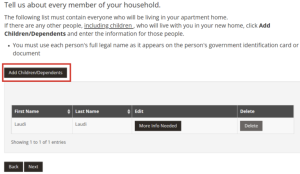
Repeat these steps until all children and dependents have been added.
You will not be able to continue until all required information has been completed for every household member.
Reasonable Accommodations/Modifications
HUD requires housing providers to collect this information to help identify applicants who may need reasonable accommodations or modifications due to a disability and to ensure equal access to housing programs and services.
Complete all required questions in this section. These questions apply to the Head of Household, Co-Head of Household, or Spouse.
Household Income
We collect household income information to help determine program eligibility and identify the housing assistance programs for which your household may qualify.
Report all sources of income received by household members. Examples of income may include:
- Employment wages
- Self-employment income
- Social Security benefits
- Supplemental Security Income (SSI)
- Disability benefits
- Retirement or pension income
- Child support or alimony
- Unemployment benefits
- Other recurring sources of income
To add income:
- Select Add Income.
- Enter the required information.
- Select Save.
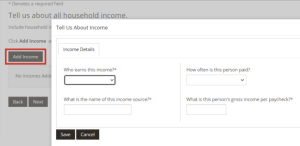
Repeat these steps for each source of household income. If no household members currently receive income, continue to the next section.
Bedroom Size Selection
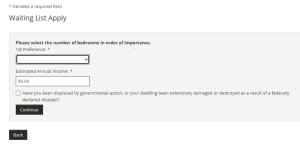
Select your preferred bedroom size from the available options.
The system will only display bedroom sizes that are appropriate for the number of household members included in your application. This information helps determine which units may be a good fit for your household if housing becomes available.
Select your preferred bedroom size and click Continue.
4. Review Application & Submit
Before submitting your application, carefully review all information to ensure it is complete and accurate.
Review Your Application
After completing the application, select Save and Continue.
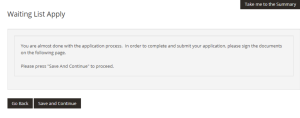
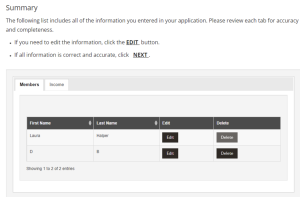
You will then see a summary of the household, income, and contact information you entered. Review each section carefully and make any necessary corrections. If changes are needed, select Edit to update the information. Once you have confirmed everything is accurate, select Save and Continue.
Sign Your Application
After reviewing your application information and selecting Save and Continue, you will be taken to the electronic signature page.
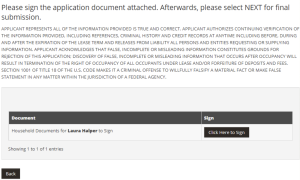
To begin the signature process:
- Select Click Here to Sign
- Review the disclosures and consent forms, then select Agree & Continue.
- Create your electronic signature by either:
- Drawing your signature using a mouse, finger, or stylus, or
- Selecting one of the available script signature options.
- After creating your signature, the application document will open.
- Complete each highlighted signature field in the document.
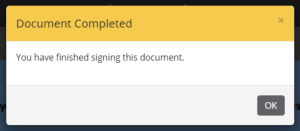
- Once all required signatures have been completed, you will receive a Document Completed notification. Select OK to continue.
Submit Your Application
Important: Signing your documents does not automatically submit your application.
After closing the Document Completed notification, you will be returned to the application portal. To finish the process, you must submit your application.
- Review the application one final time.
- Select Submit Application
- Wait for the confirmation page to appear.
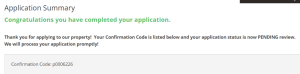
Your application is not complete until you receive a confirmation message with your confirmation number.
Save Your Confirmation Number
After submitting your application, you will receive a confirmation message containing your confirmation number. Please save this number for your records. You will need it to check your waitlist status and reference your application in the future.
Housing Choice Voucher (HCV) Waitlist Application Steps
1. Go to the HCV program application waitlist website
Visit the Housing Choice Voucher (HCV) Program page to determine whether the waitlist is currently accepting applications.
If the waitlist is open, select Apply Here to begin your application.
2. Complete the Application
All HCV waitlist applications are completed through the Emphasys Applicant Portal.
Select Apply Here and follow the prompts to complete each section of the application.
Section 1: Head of Household Information
Provide the following information for the Head of Household, including:
- Full legal name
- Gender
- Date of birth
- Social Security Number (if applicable)
- Phone number
- Email address
Important: Be sure to provide a phone number and email address that you regularly use. We will use this information to contact you about your application and waitlist status.
Section 2. Family Member Information
All household members who will live in your household must be included in the application. Use each person’s full legal name as it appears on official identification or government-issued documents.
First, select the number of household members who will be included in the application. This is where you will include co-head of household and spouse. Do not include the Head of Household or any unborn children in this count.
Next, provide the following information for each household member:
- Full legal name
- Gender
- Relationship to Head of Household
- Social Security Number (if applicable)
- Date of birth
Section 3. Mailing Address
Provide a mailing address where you can reliably receive mail. We may use this address to contact you regarding your application and waitlist status.
Section 4. Family Assets
Report any household assets.
We collect this information to help determine program eligibility and identify housing assistance programs for which your household may qualify.
Examples of assets may include:
- Bank accounts
- Life insurance policies
- Property or real estate
- Other financial assets
Note: This section is optional and may be skipped if it does not apply to your household.
Section 5. Application Summary
Review all information entered in the application to ensure it is complete and accurate.
Before continuing, select the verification checkbox confirming that the information provided is correct.
Section 6: Select the HCV Waitlist
Select the waitlist you would like to apply for. If the HCV Waitlist is open, it will appear in the list. If you do not select the HCV waitlist, your application will not be submitted to the HCV waitlist.
Section 7: Additional Questions
Complete all required questions. The questions displayed in this section are based on the waitlist selected in the previous step.
Section 8: Confirmation Page
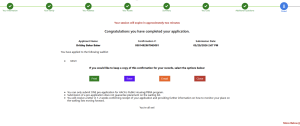
After submitting your application, you will receive a confirmation message containing your confirmation number. Please save this number for your records. You will need it to check your waitlist status and reference your application in the future.
3. Register for the Applicant Portal
After submitting your HCV waitlist application, you may register for the Applicant Portal.
The Applicant Portal allows you to:
- Check your waitlist status
- Update your contact information
- Receive important notifications about your application
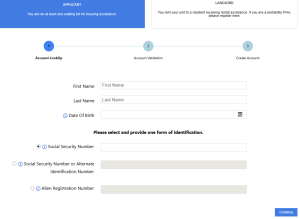
We encourage all applicants to register and keep their contact information up to date.
After Applying
After you submit your waitlist application:
1. Check your email inbox
2. Check your waitlist status
While on the waiting list, check your email inbox regularly as this is how we will communicate updates. Make sure to keep your contact information current on your application.
You can update your contact information directly in the portal. If you are having trouble accessing the portal, you can contact our Assisted Housing team or stop by the office to fill out an update form.
3. What to do if you are selected
If selected, attend the interview and bring the following required documents.
- Photo ID for all household members 18 years and older
- Birth certificates and Social Security cards for all household members
- Proof of income, including:
- Two most recent pay stubs
- Recent bank statement